USB-C dock buying guide
A simpler desk starts
with the right connections.
Bring your laptop, screens and accessories together. Check video support, charging and ports before choosing your next dock or hub.
Shopping buttons are paid Amazon affiliate links. As an Amazon Associate I earn from qualifying purchases.
Amazon button: paid affiliate link. Current prices and delivery are shown on Amazon.
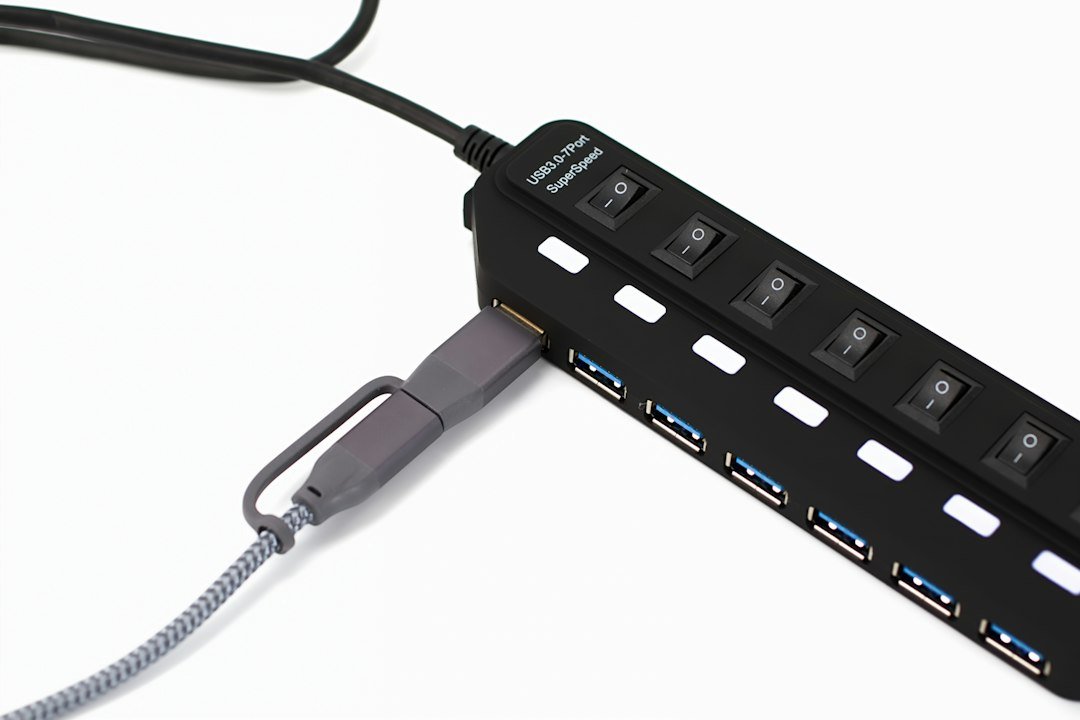
Shopping on your phone? Amazon.ca affiliate links may open directly in the Amazon Shopping app when supported. Otherwise, they open in your browser. Check the current price, seller, delivery and Prime eligibility on Amazon.
Moe Repair buyer’s shortlist
USB-C hubs and docks worth comparing
USB-C port shape does not guarantee video output or charging. Check your laptop’s exact port capabilities before ordering.
Simple travel hub
Anker 332 USB-C Hub (5-in-1)
A compact starting point when you need a few extra ports at a desk or on the go.
Before you buy: Confirm the exact model’s HDMI, USB and power pass-through features.
Find this model on Amazon.ca Paid affiliate link · Opens Amazon.ca search resultsMultiport everyday hub
UGREEN Revodok USB-C Hub (6-in-1)
A hub family worth comparing for an everyday laptop workspace.
Before you buy: Check video output, power delivery and compatibility with your specific laptop.
Find this model on Amazon.ca Paid affiliate link · Opens Amazon.ca search resultsFull desk docking
Plugable UD-6950 series docking station
A docking-station family to compare for a fuller multi-display workstation.
Before you buy: Verify the exact suffix, DisplayLink driver needs and OS display limitations.
Find this model on Amazon.ca Paid affiliate link · Opens Amazon.ca search resultsShopping note: These links open Amazon.ca searches for the named products, not guaranteed product listings. Confirm the exact model, seller, specifications, price, delivery and Prime eligibility on Amazon before purchasing. As an Amazon Associate I earn from qualifying purchases.
Choose your direction
What would make the biggest difference?
Start with the option closest to your goal. These searches help you compare the right kind of equipment—not just the first listing you see.
USB-C hub
Extra ports for a compatible laptop.
- List the ports you actually need
- Check USB data speed and video output
- For charging pass-through, confirm supported wattage
Workstation dock
One connection for a desk with monitors and accessories.
- Check exact laptop and operating-system support
- Confirm simultaneous monitor resolution and refresh rate
- Check whether the power adapter is included
USB-C PD charger
A spare charger for devices that support USB-C charging.
- Match the laptop’s required power profile and wattage
- Use an appropriately rated cable
- Check port power sharing when charging several devices
Confirm the exact model and compatibility before purchasing. Amazon searches can include sponsored or unrelated listings.
Want a little more direction?
Use the Tech Finder to sort your starting points by goal and spending preference.
A USB-C docking station can simplify a laptop desk setup, but a matching connector is only the first check. Before ordering, confirm how your laptop handles video, charging, data and external displays. The dock, laptop, cables and monitors must work together.
USB-C is a connector, not a feature checklist
Two laptops with similar-looking ports can support different features. One port may handle data only; another may support DisplayPort Alternate Mode, USB4 or Thunderbolt. A dock cannot assume features that the host computer lacks. Read the laptop manual rather than deciding from the connector’s shape alone.
Microsoft’s USB-C troubleshooting documentation explains that the computer, cable and connected device must support the relevant features. Check the port you will actually use: different ports on one laptop may have different capabilities.
Choose the right type of dock or hub
| Type | When to consider it | What to verify |
|---|---|---|
| Compact USB-C hub | A portable collection of a few extra ports. | Required laptop features, video capability and whether a charger is separate. |
| USB-C video dock | A desk with screens, Ethernet and USB accessories. | Native display support, monitor combinations and delivered laptop charging power. |
| Thunderbolt or USB4 dock | A setup whose supported bandwidth or devices justify it. | Host and dock versions, cable requirements and supported fallback behaviour. |
| DisplayLink-based dock | Some setups that use USB graphics with software support. | Exact operating-system support, driver installation and workload limitations. |
These are categories, not a claim that every model supports every feature. Dell’s dock guidance distinguishes these approaches; always use the individual dock manual for the final decision.
Check your monitor combination, not just the number of sockets
Write down whether you need one external screen or several, extended desktops or mirroring, and each monitor’s resolution and refresh rate. “Dual HDMI” on a listing does not prove that your laptop can run your desired combination. A dock may advertise its highest resolution with only one display connected.
Check the laptop’s own external-display limits and the dock’s table for your operating system. Mac and Windows display behaviour can differ, so look for support for your exact model. For a game-focused desk, verify the full path at the intended refresh rate; a productivity dock may be an unnecessary limitation.
Check how much power reaches the laptop
The number printed on a charger or a dock’s power input is not always the power delivered to the laptop. Some power is reserved for the dock and attached devices. Compare the specified host charging output with the laptop’s requirements, and check whether the required power supply is included.
A pass-through hub may need a separate USB-C Power Delivery charger. Some performance laptops rely on a proprietary adapter for full performance. If compatibility documentation does not confirm sufficient charging, plan to keep the original laptop charger connected.
Cables and accessories are part of the purchase
Confirm whether the host cable is supplied and whether it can be replaced. Check the cable’s documented support for the required data, video and power features. A cable that charges a phone is not automatically suitable for a high-bandwidth dock.
Count the ports you will use at the same time, including a webcam, external drive, keyboard, mouse and wired network. Consider cable routing, desk space and whether you will carry the dock between locations. More ports are not necessarily better if their capabilities do not suit your devices.
Check drivers and workplace restrictions
Some docks or functions require drivers, firmware updates or operating-system permissions. On a business laptop, confirm that your IT administrator permits the required software before purchase. Check the manufacturer’s support page for the exact dock model rather than downloading drivers from an unrelated website.
If your main issue is a slow wireless connection, a dock with Ethernet may be one part of the setup, but it will not repair every network problem. Read about Wi-Fi and network support if connectivity is unreliable on multiple devices.
A practical pre-purchase checklist
- Record the exact laptop model and operating system.
- Confirm supported docking and video features for the chosen port.
- Write down monitor resolutions, refresh rates and extended-display needs.
- Compare delivered charging power with laptop requirements.
- Check supplied cables, power supply and any driver requirements.
- Review the seller, Canadian delivery total, warranty and return terms.
For example, an office buyer using one ordinary monitor and a keyboard should compare a different set of features from a buyer using multiple high-resolution displays and a fast external drive. Begin with the equipment you own, then choose the simplest documented solution.
Manufacturer references
Ready to take the next step?
Compare the options, check the details and choose the setup that fits you.
Amazon shopping buttons are paid affiliate links. Need installation or repair help? Discuss your project with Moe Repair.
Get more from your setup
Complete your next upgrade
Explore complementary technology with practical buying advice. Build a setup that works together, not just a collection of parts.

Laptops
Choose the right computer for work, home or gaming.
Read the buying guide →Illustrative photo: Andrew Neel / Unsplash
Monitors
Find the screen size and resolution that fit.
Read the buying guide →Illustrative photo: Sebastian Bednarek / Unsplash
Desk accessories
Build a more comfortable, productive workspace.
Read the buying guide →Illustrative photo: Jessica Lam / Unsplash
Affiliate disclosure: As an Amazon Associate I earn from qualifying purchases. Amazon shopping links on this page are paid affiliate links. Purchases and checkout take place on Amazon. Check the exact item, seller, price, delivery and return terms before ordering.