Computer desk accessories guide
Make your desk
work for you.
The keyboard you enjoy using. The mouse that feels right. The stand that fits your space. Build a setup around the details you use every day.
Shopping buttons are paid Amazon affiliate links. As an Amazon Associate I earn from qualifying purchases.
Amazon button: paid affiliate link. Current prices and delivery are shown on Amazon.
Shopping on your phone? Amazon.ca affiliate links may open directly in the Amazon Shopping app when supported. Otherwise, they open in your browser. Check the current price, seller, delivery and Prime eligibility on Amazon.
Moe Repair buyer’s shortlist
Desk accessories worth comparing
The best accessory is the one that solves a real daily problem: typing comfort, precise control or a better laptop position.
Keyboard and mouse combo
Logitech MK270 Wireless Combo
An uncomplicated keyboard-and-mouse combination to consider for a basic workstation.
Before you buy: Check keyboard layout and whether a USB receiver is included.
Find this model on Amazon.ca Paid affiliate link · Opens Amazon.ca search resultsProductivity mouse
Logitech MX Master 3S
A feature-rich mouse to compare for design work, documents and frequent multitasking.
Before you buy: Check the exact version and operating-system compatibility.
Find this model on Amazon.ca Paid affiliate link · Opens Amazon.ca search resultsLaptop desk posture
Rain Design mStand
An elevated laptop stand option for a cleaner, more comfortable desktop arrangement.
Before you buy: Check laptop size and plan for an external keyboard and mouse.
Find this model on Amazon.ca Paid affiliate link · Opens Amazon.ca search resultsShopping note: These links open Amazon.ca searches for the named products, not guaranteed product listings. Confirm the exact model, seller, specifications, price, delivery and Prime eligibility on Amazon before purchasing. As an Amazon Associate I earn from qualifying purchases.
Choose your direction
What would make the biggest difference?
Start with the option closest to your goal. These searches help you compare the right kind of equipment—not just the first listing you see.
Everyday keyboard & mouse
Simple accessories for a comfortable daily setup.
- Choose a layout and size you like
- Check Bluetooth or USB receiver compatibility
- Consider readable key labels
Laptop stand & desk setup
Raise the display and use separate input devices.
- Adjustable height and stable construction
- Fit the laptop’s dimensions and weight
- Use an external keyboard and mouse with a raised laptop
Gaming mouse & headset
Choose controls and audio around your games and preferences.
- Compare shape, weight and button placement
- Check wired or wireless connection support
- Confirm microphone compatibility
Confirm the exact model and compatibility before purchasing. Amazon searches can include sponsored or unrelated listings.
Want a little more direction?
Use the Tech Finder to sort your starting points by goal and spending preference.
A useful desk setup begins with the devices you use every day: keyboard, mouse, headset, webcam and laptop stand. Choose accessories around your computer, available space and preferred way of working. This guide focuses on practical fit and compatibility rather than a list of expensive extras.
Wired, Bluetooth or a USB receiver?
| Connection | Why consider it | Before buying |
|---|---|---|
| Wired USB | A direct connection without pairing or charging the accessory. | Check the connector type, cable length and available ports. |
| Bluetooth | A connection that may free a USB port on a compatible device. | Check operating-system support, pairing and battery arrangements. |
| Dedicated USB receiver | Wireless use through a compatible receiver. | Verify the receiver is included and matches the device’s wireless system. |
| Multi-device switching | One accessory used with more than one supported computer or tablet. | Check which connections and switching controls are supported on each device. |
Do not assume every small receiver works with every wireless mouse or keyboard. For example, Logitech documents that Logi Bolt and Unifying wireless products use different, non-interchangeable receiver systems. Check the exact device’s compatibility information when replacing a missing receiver or combining accessories.
Choose a keyboard around your tasks
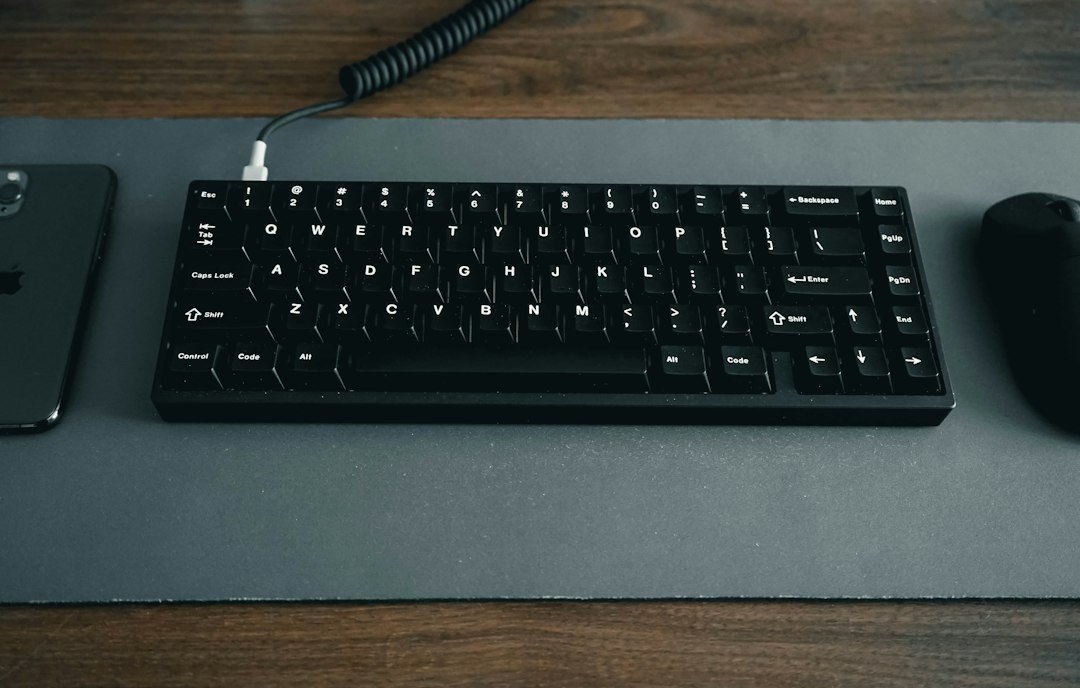
Compare full-size, compact and number-pad-free layouts with the work you actually do. Someone entering numbers frequently may prefer a number pad; someone with limited desk space may value a smaller keyboard. Check the language layout and key legends, especially when buying from a marketplace with several regional versions.
Consider key feel, noise, backlighting and the controls you use. If special buttons require software, check support for your operating system and whether a workplace computer allows that software. A keyboard’s physical compatibility does not establish that every shortcut or configurable feature works on every platform.
Compare mouse shape and connection preferences
Think about size, weight, handedness and the buttons you use most. If possible, try a similar shape rather than choosing from a photograph alone. Consider your normal desk surface and whether you want a mouse pad.
For travel, check how the mouse and receiver are stored. At a fixed desk, check charging or battery-replacement arrangements and where the receiver can be placed. Headline sensitivity figures alone do not tell you whether a mouse feels suitable for everyday work.
Plan a laptop stand as part of a complete setup
Measure the laptop, check the stand’s supported size and weight, and confirm that the design leaves cooling openings unobstructed. An adjustable stand should remain stable in the positions you expect to use.
If you raise the laptop, consider how you will use a separate keyboard and mouse and route the charging cable. Include the stand’s footprint, not just its height, when measuring the desk. A stand cannot fix a computer’s existing overheating or hardware fault; ask about laptop assessment if those problems are already present.
Check headsets and webcams for your calls
List the applications and devices you use for meetings. Check the headset’s microphone connection and whether its features support your operating system. An audio connector’s shape alone may not establish that a microphone works with a particular computer or adapter.
For a webcam, check mounting options, cable reach and any required software. Consider the room lighting and microphone placement as well as the resolution label. If your current calls fail only in one application, review the application’s device selection and permissions before assuming you need a new accessory.
Count ports and check the charging plan
List everything that must connect at once: mouse receiver, keyboard, headset, webcam, external drive and charger. If you need a hub or dock, compare its functions with your laptop’s supported port features. The USB-C docking station guide explains video and charging compatibility.
Keep a record of each device’s model, supplied cable and receiver. This makes it easier to identify the correct replacement later and reduces the chance of ordering a superficially similar but unsupported part.
Compare Canadian purchase terms
Check the final price with taxes, shipping, any separate batteries, adapters and cables. Review the seller and condition, receiver inclusion, warranty and return terms. For a product whose feel matters, check the return policy before buying rather than assuming an opened accessory can always be returned.
A sensible order for desk upgrades
- Fix missing compatibility or connection requirements first.
- Choose the input devices you will use most.
- Measure the stand or screen arrangement.
- Add a webcam or headset if your existing equipment does not meet your needs.
- Buy a hub or dock only after you know the complete port requirement.
Manufacturer reference
Logitech: Bolt and Unifying receiver compatibility. Check the support page for each accessory model for its own supported connections.
Ready to take the next step?
Compare the options, check the details and choose the setup that fits you.
Amazon shopping buttons are paid affiliate links. Need installation or repair help? Discuss your project with Moe Repair.
Get more from your setup
Complete your next upgrade
Explore complementary technology with practical buying advice. Build a setup that works together, not just a collection of parts.

Laptops
Choose the right computer for work, home or gaming.
Read the buying guide →Illustrative photo: Andrew Neel / Unsplash
Monitors
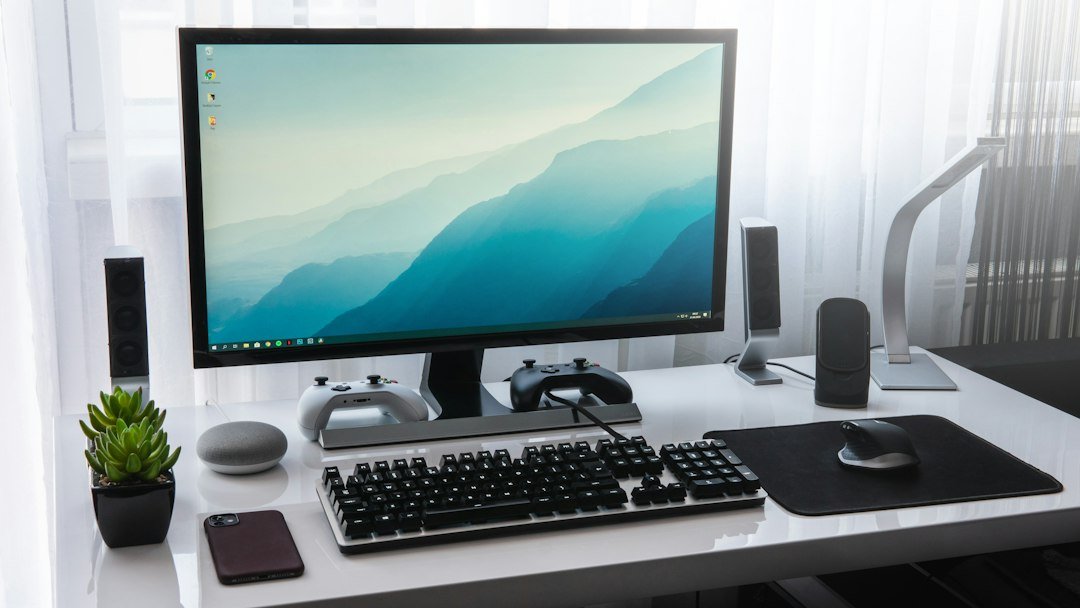
Find the screen size and resolution that fit.
Read the buying guide →Illustrative photo: Sebastian Bednarek / Unsplash
USB-C docks
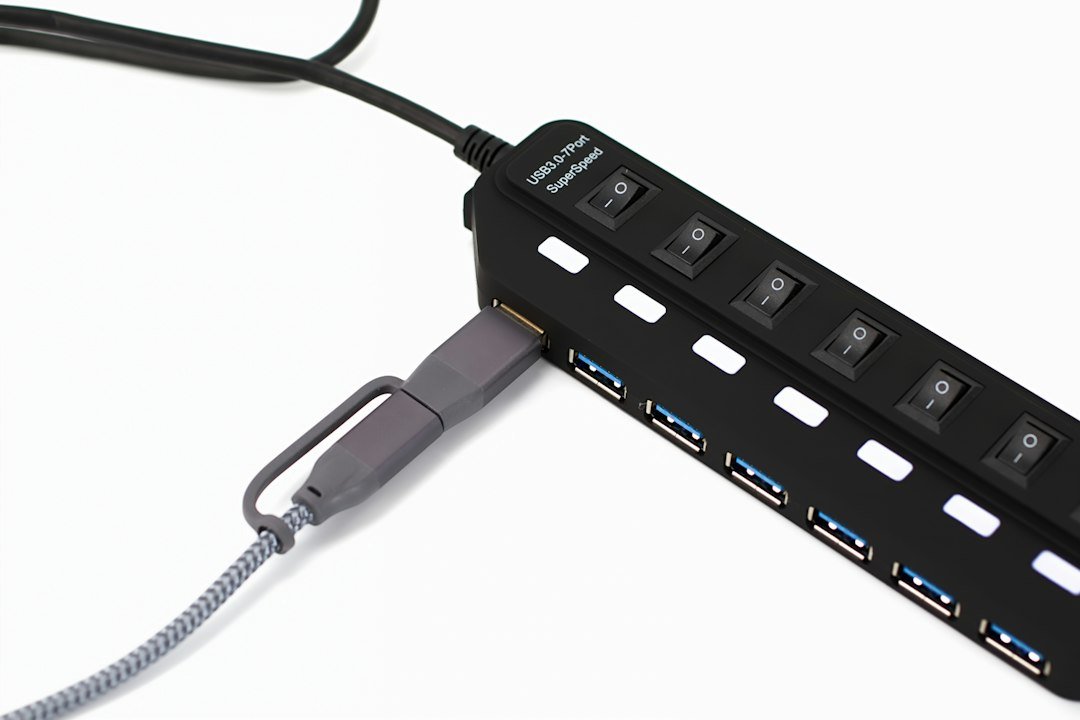
Connect monitors, power and everyday peripherals.
Read the buying guide →Illustrative photo: Barry A / Unsplash
Affiliate disclosure: As an Amazon Associate I earn from qualifying purchases. Amazon shopping links on this page are paid affiliate links. Purchases and checkout take place on Amazon. Check the exact item, seller, price, delivery and return terms before ordering.