PC upgrade compatibility guide
More from your PC.
A smarter upgrade plan.
Put your budget toward the parts that suit your goals. Check RAM, graphics, storage and power as a complete system before you order.
Shopping buttons are paid Amazon affiliate links. As an Amazon Associate I earn from qualifying purchases.
Amazon button: paid affiliate link. Current prices and delivery are shown on Amazon.
Shopping on your phone? Amazon.ca affiliate links may open directly in the Amazon Shopping app when supported. Otherwise, they open in your browser. Check the current price, seller, delivery and Prime eligibility on Amazon.
Choose your direction
What would make the biggest difference?
Start with the option closest to your goal. These searches help you compare the right kind of equipment—not just the first listing you see.
Memory upgrade
More memory can help a compatible computer handle multitasking.
- Confirm DDR generation and maximum supported capacity
- Match DIMM or SO-DIMM format
- Check whether memory is soldered or replaceable
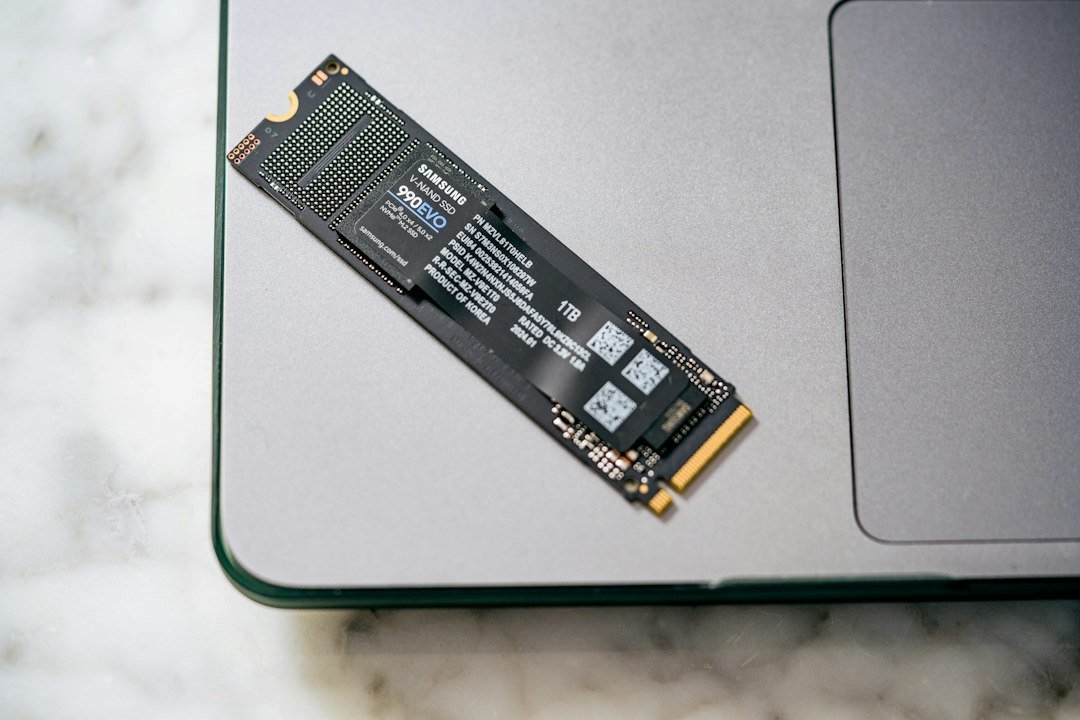
SSD upgrade
Explore storage upgrades for a compatible desktop or laptop.
- Identify SATA or NVMe support first
- Check physical fit and supported capacity
- Plan a backup and migration
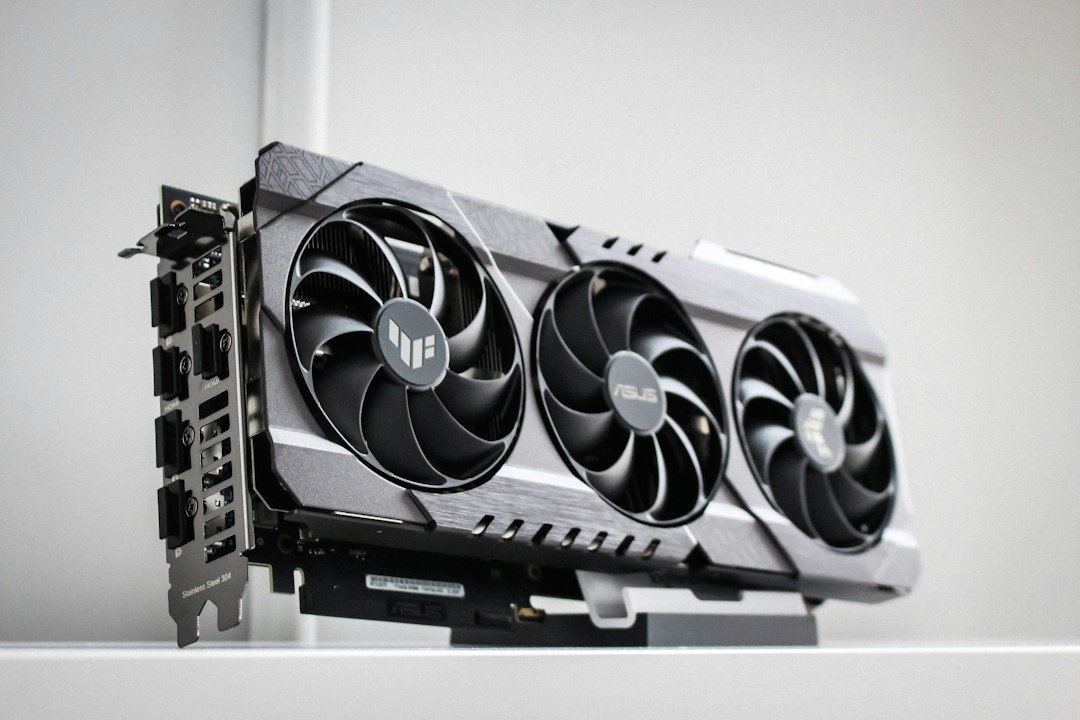
Graphics card upgrade
Plan a gaming upgrade around the whole computer.
- Check case clearance and cooling
- Confirm PSU capacity and power connectors
- Compare performance at your monitor’s resolution
Confirm the exact model and compatibility before purchasing. Amazon searches can include sponsored or unrelated listings.
Want a little more direction?
Use the Tech Finder to sort your starting points by goal and spending preference.
Before buying RAM, a graphics card, an SSD or a power supply, check the existing computer as a complete system. A part can be physically similar to the old one and still be incompatible. This guide helps you build a component checklist before spending money on a PC upgrade.
Match the upgrade to the limitation
| Upgrade | Reason to investigate it | Compatibility checks |
|---|---|---|
| RAM | Your workload needs more working memory. | Supported generation, module type, capacity and slot configuration. |
| SSD | Storage capacity or the existing drive is limiting your use. | SATA or NVMe support, physical format, mounting and migration. |
| Graphics card | Your games or applications need different graphics capability. | Case clearance, power connections, cooling and display outputs. |
| Processor | Your workload benefits from a supported CPU change. | Motherboard support list, firmware version, power and cooling requirements. |
| Power supply | The complete system needs a suitable replacement power source. | Physical fit, required connectors, documented capacity and cable compatibility. |
Measure the problem as clearly as you can. For example, a larger SSD will not add RAM, and a new graphics card does not solve every cause of a game stuttering. If the computer is crashing, shutting down or failing to detect hardware, consider desktop diagnostics before ordering parts.
RAM: match the generation and form factor
Check the motherboard or computer manufacturer’s supported memory specifications. DDR4 and DDR5 are not interchangeable. Capacity limits, supported module types and the recommended slot arrangement also matter. A laptop and desktop may require different module formats.
If you are adding to an existing installation, record what is already fitted and check the manufacturer’s guidance on mixing modules or kits. Do not assume that buying the highest advertised memory speed establishes compatibility or guarantees that speed in your system.
SSD: verify the interface and plan the data transfer
Check whether your system supports a 2.5-inch SATA drive, M.2 SATA storage or M.2 NVMe storage. Confirm physical length and clearance. Use our SATA vs NVMe SSD guide for a more detailed explanation and migration checklist.
Before replacing the system drive, keep a verified backup and decide how the operating system and files will be transferred. If the current drive is failing and contains the only copy of important data, discuss data preservation before repeatedly trying to clone it.
Graphics card: dimensions and power both matter
Compare the card manufacturer’s dimensions with the case’s clearance after accounting for installed cooling hardware and other components. Check thickness as well as length, available expansion space and the room needed for power connections and cable routing.
Confirm the required power connections and the power supply manufacturer’s suitability guidance for the complete build. Check the monitor connections and intended resolution too. A graphics upgrade should be planned alongside your monitor choice, not as an isolated specification.
CPU and cooling: check the support list
A matching socket is an initial check, not the whole answer. Consult the motherboard manufacturer’s CPU support list and any stated firmware requirements. Include a compatible cooler mounting system, physical clearance and cooling capacity in the plan.
OEM and compact computers can have model-specific restrictions. If several supporting parts would need replacement, compare the complete upgrade with a planned custom PC build before buying the first component.
Power supplies and modular cables
Check power supply size, mounting, connector requirements and clearance around the cable connections. Compare the documented power requirements of the complete system rather than choosing by wattage alone.
Modular PSU cables must be approved for the exact power supply model or compatible family. Do not reuse a cable just because its plug fits. Manufacturers including Corsair and Seasonic publish model-specific compatibility information. Keep replacement cables clearly identified and follow the manufacturer’s installation instructions.
Compare the full upgrade cost in Canada
Include the component, any supporting hardware, migration or installation labour, applicable taxes, shipping and testing. Check the seller, item condition, warranty and return terms. An inexpensive component is not necessarily the less expensive plan if it forces several other purchases.
Your pre-purchase checklist
- Define the application, game or task you want to improve.
- Record exact existing component models.
- Check the manufacturer’s support lists and manuals.
- Measure available space and verify connections.
- Plan backup, installation and any required migration.
- Check operation after installation before repurposing old parts.
Send Moe Repair your component list and upgrade goal if you want to discuss compatibility or installation. Keep passwords and recovery keys out of an initial enquiry.
Manufacturer references
Ready to take the next step?
Compare the options, check the details and choose the setup that fits you.
Amazon shopping buttons are paid affiliate links. Need installation or repair help? Discuss your project with Moe Repair.
Get more from your setup
Complete your next upgrade
Explore complementary technology with practical buying advice. Build a setup that works together, not just a collection of parts.
SSDs & backup
Compare storage speed, capacity and compatibility.
Read the buying guide →Illustrative photo: Samsung Memory / Unsplash
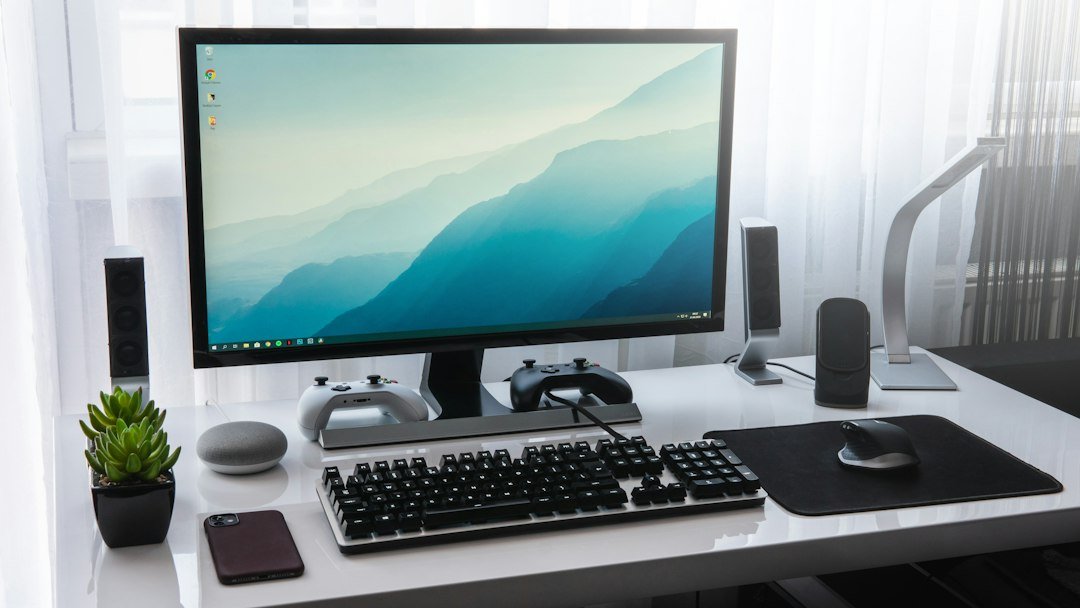
Monitors
Find the screen size and resolution that fit.
Read the buying guide →Illustrative photo: Sebastian Bednarek / Unsplash
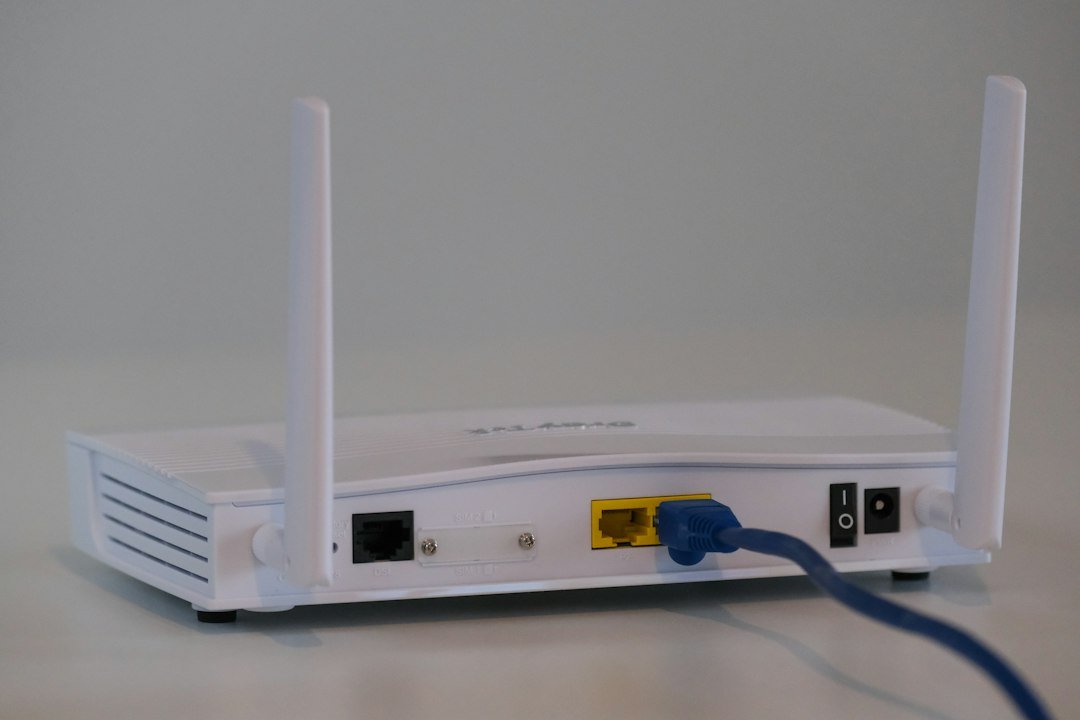
Wi-Fi & networking
Understand coverage, adapters and wired options.
Read the buying guide →Illustrative photo: Compare Fibre / Unsplash
Affiliate disclosure: As an Amazon Associate I earn from qualifying purchases. Amazon shopping links on this page are paid affiliate links. Purchases and checkout take place on Amazon. Check the exact item, seller, price, delivery and return terms before ordering.