Monitor buying guide • Canada
See your next upgrade.
Make room for better work.
Find a screen that fits your desk, your computer and your favourite things to do—from focused work to your next gaming session.
Shopping buttons are paid Amazon affiliate links. As an Amazon Associate I earn from qualifying purchases.
Amazon button: paid affiliate link. Current prices and delivery are shown on Amazon.
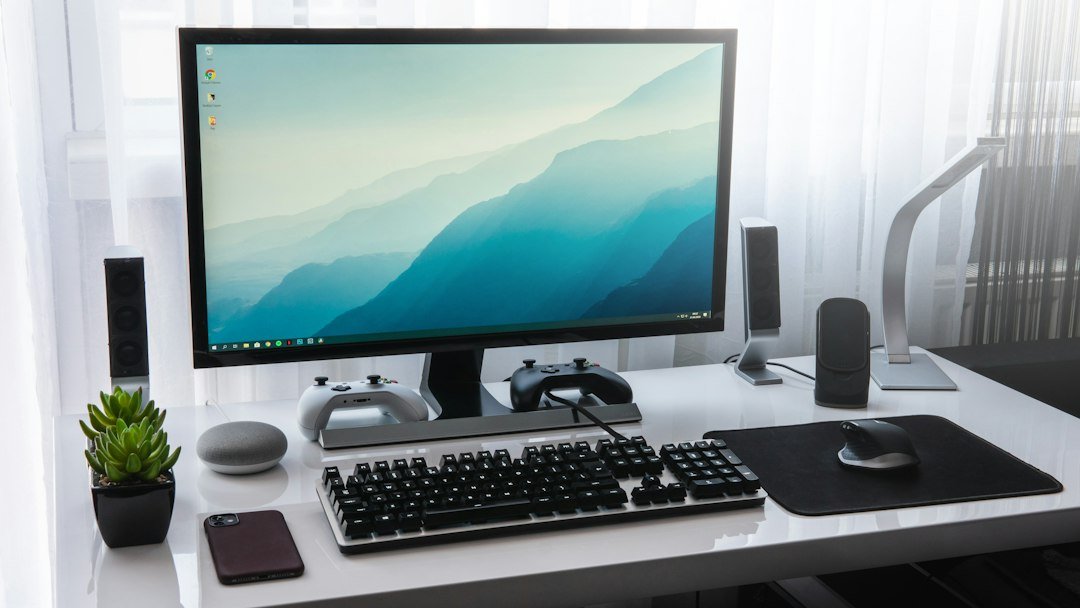
Shopping on your phone? Amazon.ca affiliate links may open directly in the Amazon Shopping app when supported. Otherwise, they open in your browser. Check the current price, seller, delivery and Prime eligibility on Amazon.
Moe Repair buyer’s shortlist
Monitors worth comparing
Match screen sharpness, refresh rate and connectivity to your daily work rather than buying on screen size alone.
Office productivity
Dell P2725D 27-inch QHD
A sensible 27-inch QHD category to consider for long office sessions and multitasking.
Before you buy: Check your PC’s display outputs and the exact stand and USB configuration.
Find this model on Amazon.ca Paid affiliate link · Opens Amazon.ca search results4K detail
LG 27UP850K-W 27-inch 4K
A 4K IPS option to compare for detailed documents, photography and sharper on-screen text.
Before you buy: It targets 4K clarity rather than high-refresh competitive gaming.
Find this model on Amazon.ca Paid affiliate link · Opens Amazon.ca search resultsHigh-refresh gaming
ASUS TUF Gaming VG27AQ3A
A 27-inch QHD high-refresh option for gaming-oriented PCs.
Before you buy: Make sure your graphics card and cable support the resolution and refresh rate you want.
Find this model on Amazon.ca Paid affiliate link · Opens Amazon.ca search resultsShopping note: These links open Amazon.ca searches for the named products, not guaranteed product listings. Confirm the exact model, seller, specifications, price, delivery and Prime eligibility on Amazon before purchasing. As an Amazon Associate I earn from qualifying purchases.
Choose your direction
What would make the biggest difference?
Start with the option closest to your goal. These searches help you compare the right kind of equipment—not just the first listing you see.
Everyday monitor
A comfortable screen for browsing, learning and daily tasks.
- Compare 24-inch and 27-inch sizes
- Check resolution for your viewing distance
- Match HDMI or DisplayPort to your computer
Workspace monitor
More room for documents, spreadsheets and multitasking.
- 27-inch QHD is one practical starting point
- Look for height adjustment
- For USB-C, check video support and power delivery
Gaming monitor
Choose resolution and refresh rate around your graphics card.
- Check refresh rate at the intended resolution
- Compare response-time testing and adaptive sync
- Confirm required cable and graphics outputs
Confirm the exact model and compatibility before purchasing. Amazon searches can include sponsored or unrelated listings.
Want a little more direction?
Use the Tech Finder to sort your starting points by goal and spending preference.
A useful computer monitor fits your work, desk and computer connections. Screen size is only part of the choice: resolution, text scaling, refresh rate and the way you connect the display can change the experience. This guide helps Canadian buyers narrow the requirements before comparing listings.
Match the monitor to your main task
| Use | Prioritize | Check before paying for more |
|---|---|---|
| Documents, email and study | Readable text, comfortable size and stand adjustment. | How text looks at your viewing distance and preferred scaling. |
| Spreadsheets and multitasking | Enough usable workspace for the windows you keep open. | Whether one larger screen or two smaller screens fits your desk and computer. |
| Gaming and creative work | Features appropriate to your games or application requirements. | Graphics performance, refresh-rate support and any specific colour-workflow needs. |
For example, a spreadsheet user may value room for columns more than an unusually high refresh rate. A gamer should compare the monitor with the frame rates the computer can realistically produce at the intended resolution. Neither buyer benefits from choosing a screen by one headline number alone.
Understand screen size, resolution and text scaling
Size describes the physical display; resolution describes the pixel grid. Common options include Full HD at 1920 × 1080, QHD at 2560 × 1440 and 4K at 3840 × 2160. More pixels can provide finer detail or more workspace, but they do not automatically make text comfortable to read.
Windows scaling changes the apparent size of text and interface elements. Microsoft recommends using the display’s recommended resolution; running below native resolution can make text look less sharp. If possible, view a similar size and resolution with the scaling you expect to use before choosing.
Check the connection from computer to screen
List the computer’s HDMI, DisplayPort or USB-C video capabilities and compare them with the monitor’s input specifications. Include any dock, adapter and cable in that check. The maximum resolution or refresh rate advertised for a monitor may only be available through particular inputs.
Apple’s display guidance also notes that an unsuitable cable or adapter can limit resolution or refresh rate. A more expensive monitor cannot remove an existing connection limitation. If your setup includes a hub, use the USB-C dock compatibility guide before ordering.
Choose refresh rate around your workload
Refresh rate is measured in hertz and describes how often the display updates. Higher rates can make motion appear smoother when the rest of the system supports them. For a gaming purchase, check the games you play, the graphics card and the desired resolution together.
For office use, compare readability, adjustment and connectivity alongside refresh rate. After connecting the monitor, check the available refresh-rate setting in Windows rather than assuming the highest rate is selected automatically. If a desired mode is missing, review the computer, connection and monitor specifications.
Plan for multiple monitors
Decide whether you want mirrored content or an extended desktop. Check your computer’s supported external-display count and the combinations of resolution and refresh rate it supports. Two display sockets on a dock do not by themselves establish that your laptop can run two independent screens.
Measure the combined width of screens and stands. Include space for the keyboard, mouse and paperwork. A second monitor can be useful, but a cramped arrangement or an unsupported connection may be a worse choice than one suitable screen.
Check the stand, mount and everyday details
Compare stand height, tilt and any rotation you need. If you plan to use a monitor arm, verify the monitor’s mounting pattern, supported weight and the arm’s requirements, then check whether the desk can accommodate the mounting method. Check speakers, webcam and USB features individually; they are not included with every monitor.
For a laptop desk, confirm whether USB-C charging is supported and how much power is delivered to the laptop. Some monitors have a USB-C port for data or video without enough power for your particular computer.
Compare the complete Canadian offer
Check the Canadian-dollar total, applicable taxes, shipping, seller and return terms. Read the warranty and any policy relating to pixel defects. Confirm included cables and whether a mount or adapter is an extra purchase. Refurbished and new screens may have different condition or coverage terms.
Monitor pre-purchase checklist
- Identify the computer and its supported display outputs.
- Choose size and resolution with text scaling in mind.
- Verify the complete cable, dock and monitor connection.
- Confirm multiple-display limits if relevant.
- Measure desk space and check stand or arm compatibility.
- Compare warranty, return policy and included accessories.
If your existing monitor loses signal or your computer behaves differently with another display, discuss desktop diagnostics before assuming the monitor needs replacing.
Technical references
Ready to take the next step?
Compare the options, check the details and choose the setup that fits you.
Amazon shopping buttons are paid affiliate links. Need installation or repair help? Discuss your project with Moe Repair.
Get more from your setup
Complete your next upgrade
Explore complementary technology with practical buying advice. Build a setup that works together, not just a collection of parts.
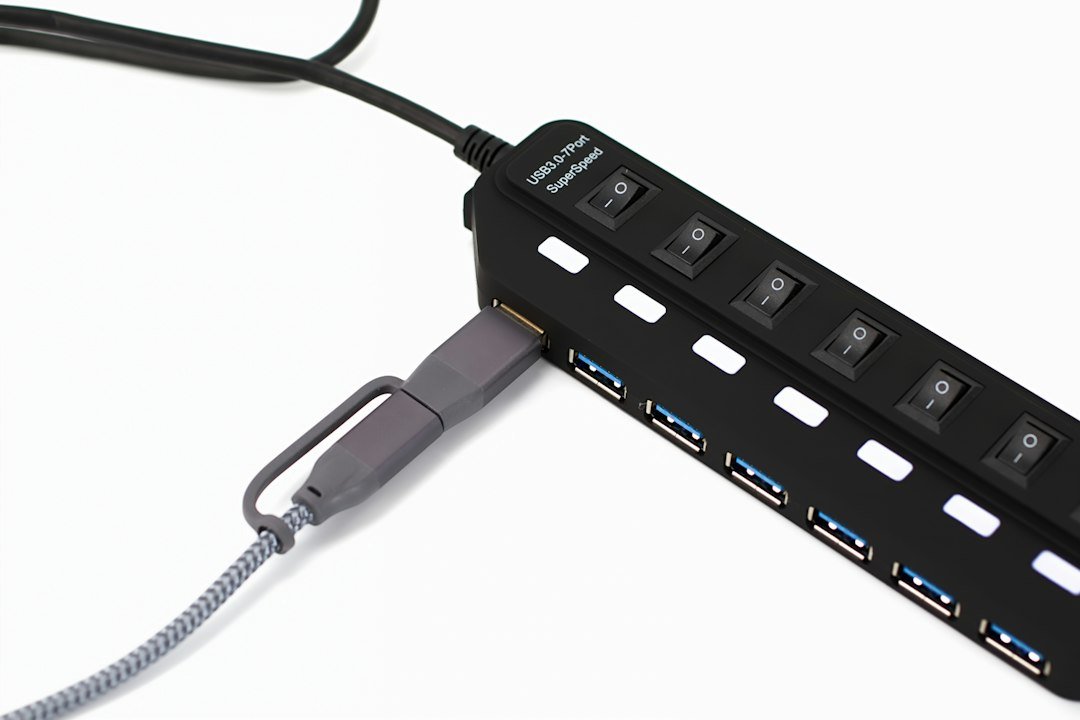
USB-C docks
Connect monitors, power and everyday peripherals.
Read the buying guide →Illustrative photo: Barry A / Unsplash
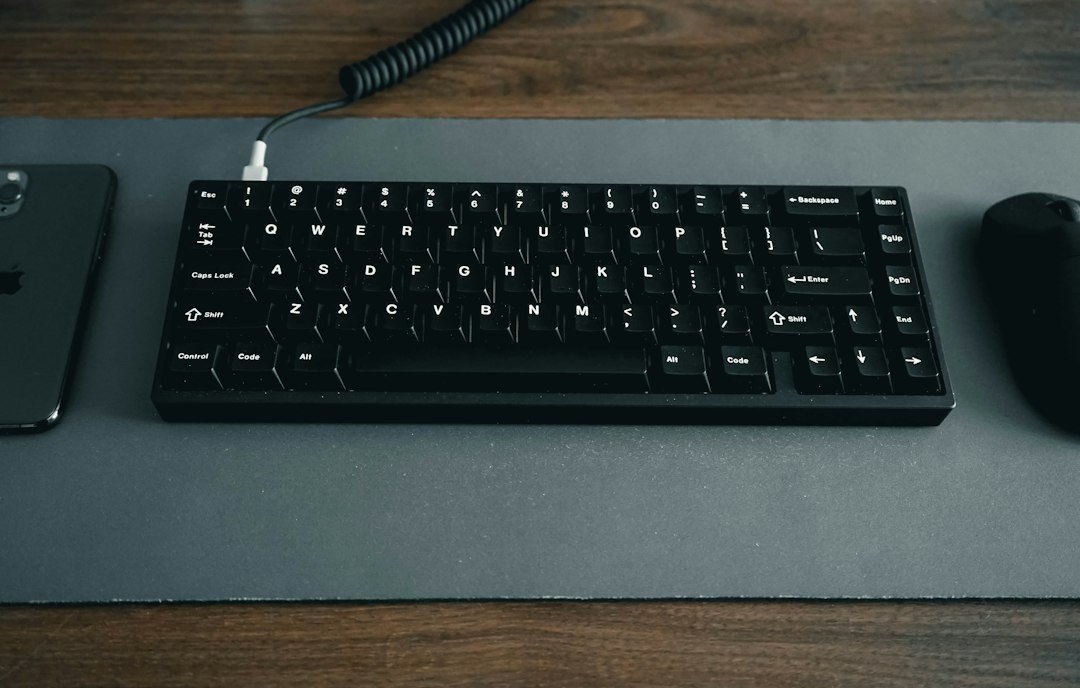
Desk accessories
Build a more comfortable, productive workspace.
Read the buying guide →Illustrative photo: Jessica Lam / Unsplash
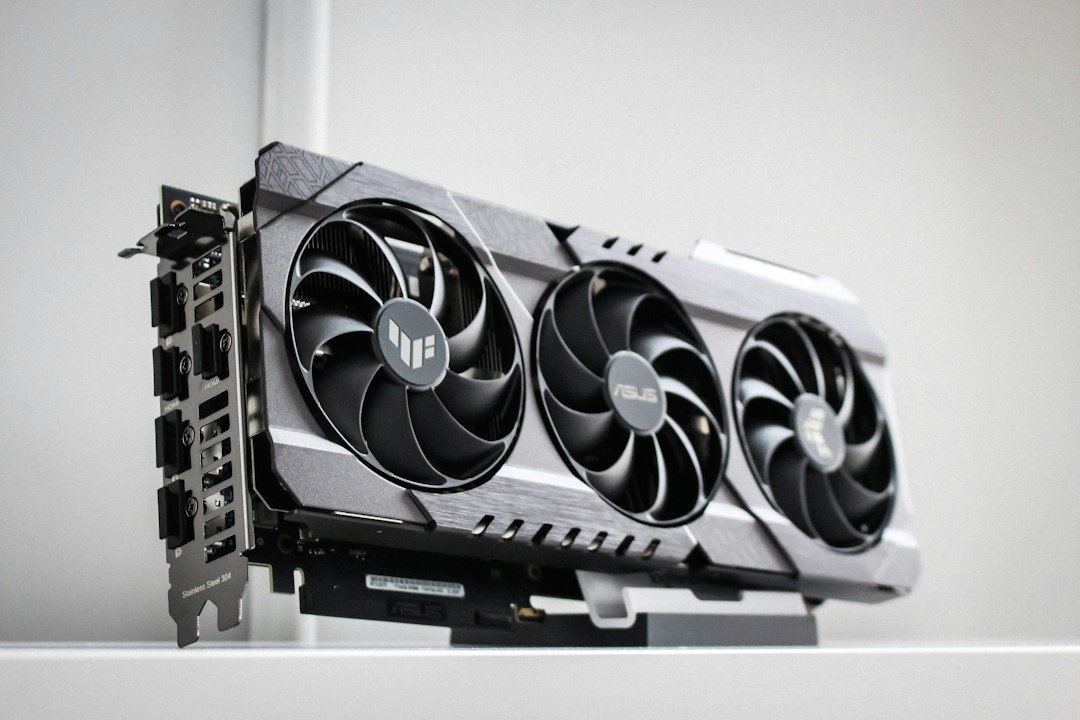
PC upgrades
Plan RAM, storage and graphics upgrades confidently.
Read the buying guide →Illustrative photo: Thomas Foster / Unsplash
Affiliate disclosure: As an Amazon Associate I earn from qualifying purchases. Amazon shopping links on this page are paid affiliate links. Purchases and checkout take place on Amazon. Check the exact item, seller, price, delivery and return terms before ordering.